


Have you ever handed over a business card only to watch someone mistype your email? That friction is why many teams are moving from traditional paper business cards to NFC business cards. An NFC digital business card uses near-field communication, so, with just a tap on an NFC enabled phone, your contact details open instantly—no manual entry, no errors. You can point people to a mobile digital business card page with your title, links, and vCard; add a QR code as a fallback for older devices; and even scale to team templates.
In this guide, we’ll show you how to create a custom NFC business card. Whether you’re upgrading a single business card or rolling out a set for your whole team, you’ll get a simple, repeatable process that keeps the classic introduction—and removes the hassle of paper business cards.
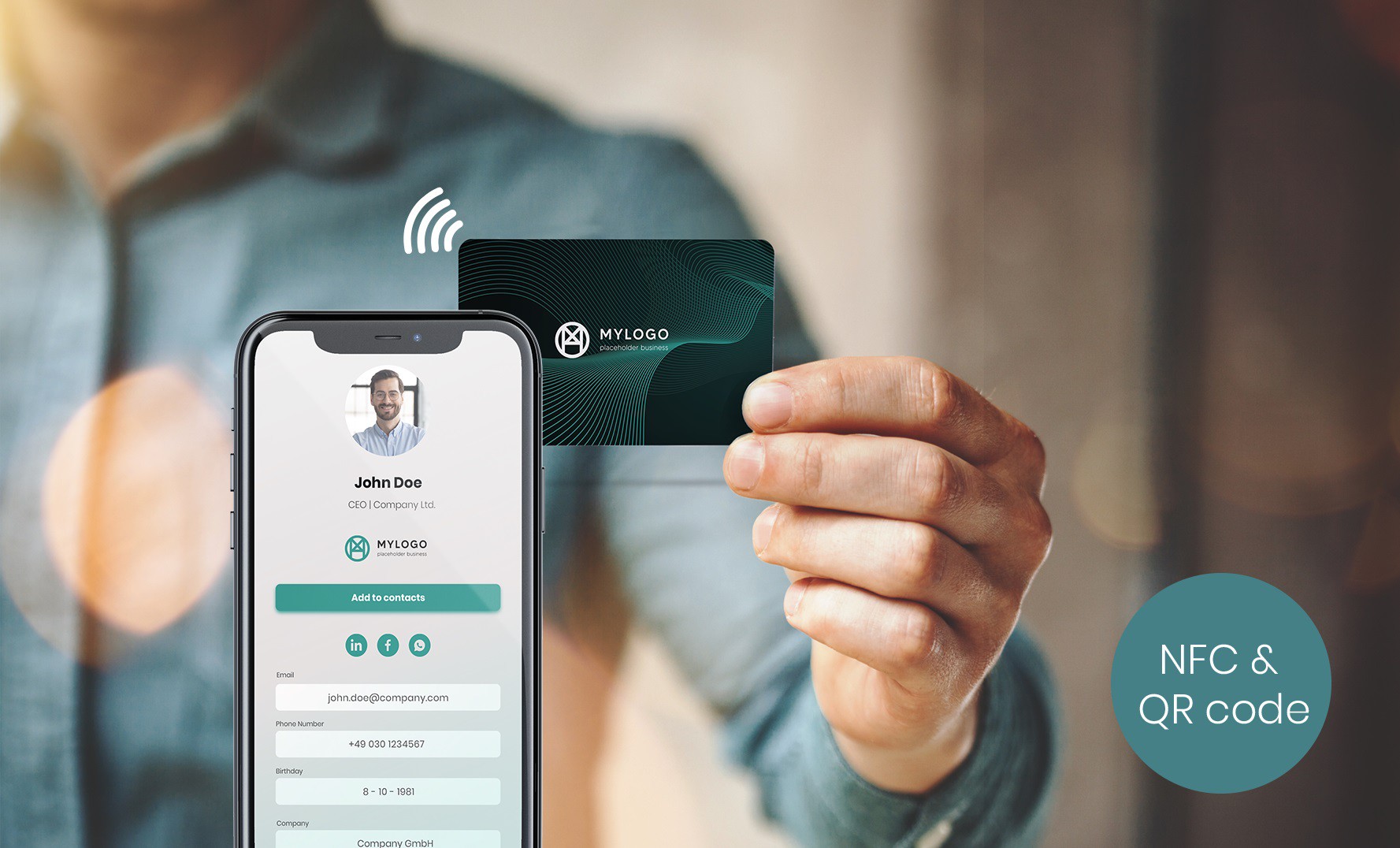
What is an NFC Business Card?
An NFC business card is a modern business card with a tiny NFC tag (chip) inside. When someone with an NFC enabled phone taps the card, your digital profile—think contact details, LinkedIn profile, company information, and key websites—opens instantly in the phone’s browser. No app required, no typing, no errors—just a tap.
Unlike traditional paper business cards, NFC cards let you update the destination anytime, so your contact info stays current. Many people pair the chip with a short URL or QR code for broader device compatibility (older Android devices or cameras). You can make a custom NFC business card that matches your brand identity—name, title, logo, and colors—while linking to social media profiles, videos, or a vCard. Because one card can serve for thousands of taps, it’s more eco friendly than constantly reprinting traditional cards.
How an NFC Business Card Works
1) Physical component
A business card with NFC is a standard card or sticker with a tiny chip—an NFC tag—inside. These nfc cards look like traditional paper business cards, but the tag stores a small URL. No battery needed.
2) Digital component
That URL points to your digital business card (a mobile page for your digital profile): name, title, contact details, company logo, LinkedIn profile, social media profiles, and key websites. You can customize it to match your brand identity; this is often called an NFC digital business card.
3) Tap-to-open workflow
-
- With just a tap, an NFC enabled phone (iPhone or Android devices) reads the tag:
-
- Phone taps card → reads URL → opens in the browser → profile opens.
-
- No app required in most cases; it’s one tap to connect and share contact info.
-
- For broader device compatibility, print a high-contrast QR code as a fallback.
Why an NFC Business Card Wins
-
- Eco-friendly & cost-effective: One card, countless taps. Because you update the page instead of reordering paper business cards, it’s more eco friendly and budget-friendly over the card’s life.
-
- Professional look, modern signal: A sleek nfc digital business card leaves a lasting impression: your logo, colors, and copy stay consistent across devices. Add a high-contrast QR code as a fallback for broader device compatibility.
-
- Easy to roll out for teams: Issue branded NFC cards at scale, keep everyone’s contact info current, and maintain a unified brand experience—one tap, profile opens, you connect faster.
Step-by-Step: Create Your NFC Business Cards
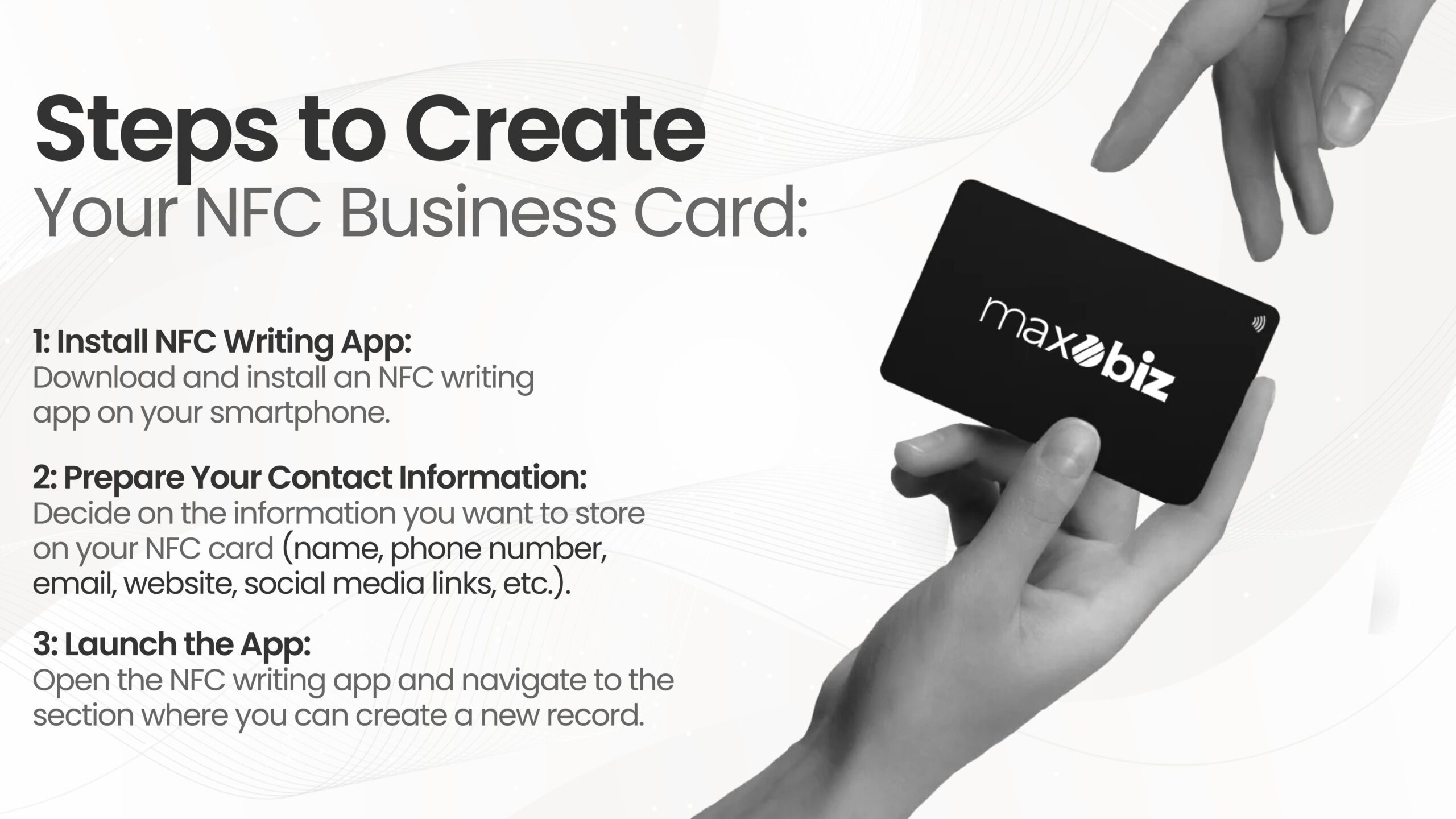
Step 1: Plan Your Digital Content
Decide what your digital profile will show when someone taps your business card with NFC. This is the page an NFC enabled phone opens—just a tap, no typing.
-
- Core contact details: name, job title, company, phone, email, address.
-
- Extended links: LinkedIn profile, WeChat, personal website, portfolio, booking/calendar page, key websites.
-
- Rich media: company intro videos, hero image or professional headshot, company logo.
-
- Usability & trust: short, branded URL; fast load in the browser; clear CTAs (“Save contact,” “Connect”).
-
- Fallback & compatibility: add a high-contrast QR code for older devices; keep content mobile-first.
-
- Brand identity: colors, typography, and tone consistent with your brand and team templates.
-
- This page is your nfc digital business card—keep it current so one update fixes every card.
Step2: Choose & Create Your Digital Business Card
Pick a platform
Choose an NFC provider (e.g., Popl, Linq, Blinq, TapTok) or a universal link tool (e.g., Linktree, Carrd). NFC platforms make it easy to pair a business card with NFC to a hosted nfc digital business card; link tools work well if you’ll manage your own page.
Here’s a concise, vendor-neutral overview of the four NFC business-card providers:
Focus: Broad adoption for individuals and sales/BD teams.
Best for: Fast rollout at scale with consistent branding and measurable engagement.
Focus: Streamlined tap-to-open profiles and practical team features.
Best for: Companies seeking a balanced feature set—easy deployment, consistent branding, and basic metrics—at a predictable cost.
Focus: Premium design and cohesive brand presentation.
Best for: Brands that value card materials/finish and a polished, design-forward profile experience.
Focus: Quick setup and mobile-first management.
Best for: Teams that need everyone live in minutes and may lean on digital-only cards.
Focus: Straightforward NFC cards paired with a clean, hosted digital profile.
Best for: Individuals and small-to-mid teams seeking simple, on-brand tap-to-share without heavy admin overhead.
Create your account & profile.
Fill in core contact details: name, title, company/company information, phone, email, address.
Add strategic links: LinkedIn profile, website, portfolio, booking calendar, key social media profiles.
Upload a clear headshot and company logo to anchor your brand identity.
Customize the page.
Choose a clean layout, readable type, and mobile-first sections so the digital profile loads fast in the browser on any NFC enabled phone (iPhone and Android devices).
Set a branded short URL; this is what your nfc tags (inside your nfc cards) will open with one tap.
Enable “Save contact” (vCard) and make key CTAs prominent above the fold.
Add fallbacks & test.
Generate a high-contrast QR code for broader device compatibility (older phones or cameras).
Test the full flow: tap card → profile opens → save contact info; confirm no app required steps break the handoff.
Team-ready (optional).
For teams, standardize templates and brand colors so every custom NFC business card looks consistent and leaves a lasting impression in networking.
Step 3: Purchase an NFC Tag/Card
Pick your form factor
-
- NFC cards (most like traditional paper business cards): Best for a professional look. Ideal for a business card with NFC that matches your brand identity; you can print name, title, company logo, and add a fallback QR code.
-
- NFC stickers: Slim tags that stick to a phone, laptop, or badge. Great for always-on sharing with just a tap; budget-friendly and easy to replace.
-
- NFC key fobs: Durable and portable; handy for everyday carry (doors, check-in) and quick networking moments.
Choose the right tag/chip
-
- Common chips: NTAG213(standard), NTAG215 (more memory), NTAG216 (largest).
-
- Make sure it’s NFC enabled and formatted for NDEF (URL).
-
- Avoid full-metal cards unless they have a non-metal “NFC window” (metal can block reads).
-
- Aim for broad device compatibility (iPhone + Android devices).
Where to buy
-
- Blank NFC tags/cards from Amazon or your chosen vendor (Popl/Linq/Blinq/Dot, etc.).
-
- Look for a fair price, reasonable shipping times, and solid customer reviews.
-
- If you need a custom NFC business card, ask about printing specs, color matching, and MOQ.
Print & branding tips
-
- Keep the card readable at a glance: name/title > contact info.
-
- Add a short URL + QR code as a fallback for older devices.
-
- Match colors/typography to your brand; high contrast helps scanning and leaves a lasting impression.
Practical checks before you buy
-
- Capacity: enough for a URL (most tags are fine).
-
- Program/lock options: you may want it rewritable.
-
- Test flow on a smartphone: one tap → profile opens (your digital business card page in the browser).
-
- Consider sustainability: one durable card = fewer reprints (eco friendly).
Step 4: Write Your NFC Business Card
Method: use your provider’s app to encode the tag
1. Download & open the app
Install your NFC provider’s app on an NFC enabled phone (iPhone or Android). Log in to your account.
2. Select “Encode/Write”
In the app, choose the option to write an NDEF record (URL). Set the destination to your digital business card page—your digital profile with name, title, contact details, company/logo, LinkedIn profile, and key websites.
3. Prepare the card or sticker
Place the blank NFC card (or sticker) flat. Avoid metal surfaces unless the card has an NFC “window.”
4. Tap-to-write
Hold the phone near the tag (usually the phone’s upper back). With just a tap, the app writes the URL to the NFC tag. You’ll hear a chime or see a success message when complete.
5. Verify the result
Remove the card, then tap it with your phone: the profile opens in the browser—no typing, typically no extra app required. Check that contact info and CTAs load fast and look on-brand (colors, typography, brand identity).
6. (Optional) Lock or keep rewritable
Keep rewritable if you plan to update links later (handy for teams).
Lock only when the URL is final for a custom NFC business card.
How to Customize Your NFC Business Card with Bizcard?
In the following steps, I’ll show you exactly how to create your own business card with Bizcard and get it ready for real-world networking. With Bizcard, you can spin up a mobile digital profile in minutes, keep contact details and links up to date without reprinting. It also supports clean layouts, logo and color consistency.
Create Your Business Card (Quick Steps)
Install & sign in: Download Bizcard (iOS/Android/Google Play), register or log in.
Build your card: Add name, title, company, phone, email, links (LinkedIn/website), and upload a photo and company logo.
There is a detailed operation process video on youtube.
Write to NFC wristband
Open the app and go to ME.
Tap NFC Card.
Use the included NFC wristband: hold it to your phone’s NFC area to write your Bizcard link.
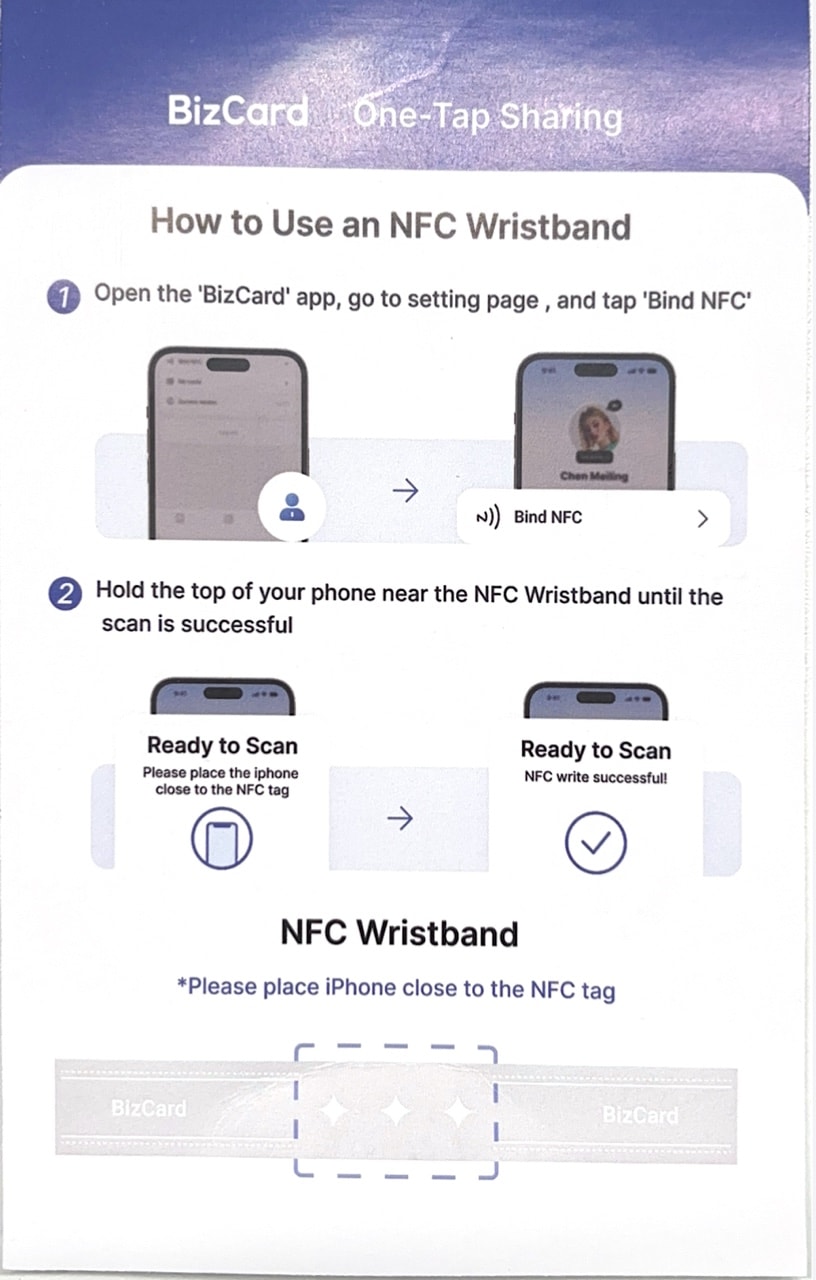
Success tone/message confirms the write. From now on, any NFC-enabled phone can open your Bizcard with a tap on the wristband.
Why the NFC wristband
Always with you: Wear it on your wrist—share with a tap, no fumbling for cards.
Hard to lose: Replaces paper cards and reduces the chance of misplacing a single NFC card.
Updatable: Update info in the app; the wristband still points to the same link—no reprinting.
Create Your Future, One Tap at a Time
In just five simple steps – Plan, Create, Purchase, Encode, Test – you can transform how you network. While traditional paper business cards often get lost or discarded, an NFC digital business card creates a lasting impression that grows with your career.
The technology is here, and the future of business connections is digital. Why continue wasting money on paper business cards when you can stand out with an eco-friendly solution that works across all devices?
Ready to make the switch? Choose a service provider today. Download their app, create your free account, and customize your digital profile to match your brand. Purchase your NFC cards, encode them with a simple tap, and start connecting smarter. Your future in networking is absolutely waiting – just one tap away.
FAQ
Q1. Can I update the information on my NFC business card?
Yes, many NFC business cards allow you to update the information stored on the chip through an online platform or app, so you don’t need to reprint the card.
Q2. Is my information secure on an NFC business card?
Yes, NFC technology is secure, and the card only shares the information you program into it. It doesn’t store sensitive data like passwords or financial details.
Q3. Are NFC business cards compatible with all smartphones?
NFC business cards work with most modern smartphones, including Android and iOS devices. However, iPhones older than the iPhone 7 may not support NFC functionality.
Q4. What happens if someone’s phone doesn’t support NFC?
If a phone doesn’t support NFC, you can include a QR code on the card as a backup option for sharing your information.
Q5. Can I customize the design of my NFC business card?
Yes, you can fully customize the design, including the card’s material, color, logo, and layout, to match your brand identity.


