


I work at Bizcard, a company built for business professionals who want to streamline contact management with digital business cards. (See this article you’ll get the hang of making digital business card) In our world, sharing information cleanly — a name, a phone number, a web link — often matters more than just handing out paper cards. QR codes have become ubiquitous: on business cards, on Wi‑Fi door‑pass invites, on event tickets, on login pages, on payment links. As Android users ourselves, we know that being able to read QR codes quickly — without fuss — can save time, reduce friction, and make us look efficient.
In this guide, I’ll walk you through — step by step — how to scan any QR code on your Android device. (If you’re looking for instructions on how to scan QR codes on iPhone or iPad, please refer to this article: How To Scan QR Code On iPhone & iPad in the Fastest Way[A Beginner-Friendly Guide].)You’ll learn what QR codes are, why QR scanning matters, when and where you’ll likely need them, who can use QR scanning on Android, and most importantly — how to scan. We’ll also cover how to enable QR scanning (if it’s turned off), how to troubleshoot common issues, and a helpful FAQ at the end. By the end, you should feel confident scanning QR codes whether they’re live in front of you, inside an image, saved in your gallery, or if you need to read a qr code saved as a picture or attachment on your device.

What Exactly Is a QR Code & Why We Use It on Android Device?
Why QR codes matter today
QR codes — short for Quick Response codes — are two‑dimensional barcodes that store data such as URLs, text, Wi‑Fi credentials, contact info, payment links, and more. In today’s fast‑paced, digital-first world, they provide a bridge between physical objects (a printed card, a poster, a document) and digital content (web pages, apps, Wi‑Fi networks, login/authentication screens).
For business professionals — people who exchange contacts, share links, set up Wi‑Fi for guests, or handle digital payments and tickets — QR codes offer convenience and speed. Rather than typing in a long URL or credentials manually, you — or your contacts — simply scan a QR code and instantly reach the intended content.
Common uses: payments, menus, logins, Wi‑Fi, apps
On Android devices, QR codes are often used for:
- Payments and digital wallets (scan-to-pay, peer-to-peer transfer)
- Event tickets, boarding passes, or electronic passes
- Restaurant menus, contactless ordering, or online reservation links
- Wi‑Fi credentials: grant guests network access instantly without typing long passwords
- App installs or downloads — scan QR to open a store page or start a download
- Contact sharing: link to a digital business card, profile page, or contact info
- Authentication and login — e.g., linking accounts, signing in, device pairing
Because the Android ecosystem supports so many device types and use cases, QR codes have become a universal tool for bridging offline and online interactions — fast, flexible, and cross‑device.
Types of QR codes your Android can read
Most QR codes you encounter will encode one of: a URL (web link), plaintext (e.g., a message or note), Wi‑Fi credentials, contact info (vCard), or payment/authentication data. On Android, built‑in tools like the camera app or Google Lens typically read all these types — whether the QR code is printed on paper, displayed on a screen, or embedded inside an image.
Because QR codes are just graphical representations of data, as long as the code is clear and intact, Android’s QR‑reading tools can interpret it — be it a web link, text, or credentials.
When QR codes won’t work (damaged, blurry, low light)

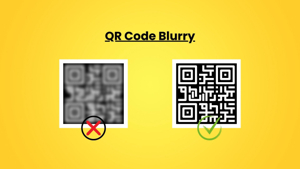
That said, QR codes are not magic. Sometimes scanning fails. Common reasons:
- The QR code image is damaged, warped, or partially cut off — then the reader can’t reconstruct the data.
- The photo or display is blurry, too small or too distorted. The camera cannot detect the pattern reliably.
- Lighting is poor (too dark, glare, reflection, backlight) — the contrast between dark and light modules in the QR code is reduced, making detection difficult.
- The phone’s camera is out of focus or the phone is held too close / too far — sometimes stabilization or focus correction is needed.
- The QR code is too small or contains too much data — heavily dense QR codes sometimes require higher resolution or steadier hands to scan.
In such cases, even a fully capable Android device may fail to read the code. That’s why it helps to know multiple ways to scan — camera, gallery, or third‑party tools — and how to optimize conditions (light, distance, stability) for success.
Advanced QR Code Scanning Features on Android

Android devices offer a variety of advanced QR code scanning features designed to make your experience faster, easier, and more powerful. Here’s what you can take advantage of:
1. Automatic QR Code Detection
Some Android phones support automatic scanning, where the camera detects and reads QR codes instantly—without tapping or adjusting any settings. This ensures accurate results every time you point your camera at a code, saving time and effort.
2. Advanced Apps for Robust Scanning
Apps like Adobe Scan enhance QR code functionality by allowing you to:
- Scan QR codes from printed or digital sources.
- Save scanned codes as searchable PDFs.
- Organize scanned documents in Google Drive or other cloud services.
3. Built-In QR Code Readers
Many Android devices come with built-in QR code readers that provide additional details about scanned codes, such as:
- Contact information from vCards
- Wi-Fi passwords
- Website links or app download pages
Simply open the reader, point your camera at the QR code, and let the device handle the rest.
4. Benefits of Using Advanced Features
By leveraging these advanced scanning capabilities, you can:
- Streamline your workflow by quickly accessing QR code content.
- Digitize documents and store them securely.
- Maximize efficiency when handling QR codes for business or personal use.
Android Device Compatibility: Will Your Phone Work?
Most modern Android devices are fully equipped to handle QR code scanning. Here’s what you need to know:
1. Built-In Camera Support
If your phone has a camera with auto-focus and decent resolution, it’s likely ready to scan QR codes using:
- The built-in camera app
- A dedicated QR code scanner app
To check compatibility:
- Open your camera app.
- Point it at a QR code.
- If a pop-up notification appears, your device supports QR code scanning.
2. Google Lens Integration
Many smartphones come with Google Lens pre-installed, adding enhanced scanning features such as:
- Live QR code detection
- Scanning from screenshots or images
- Translating text or recognizing products
If you don’t see the QR code option, you can enable Lens in your camera settings or download it from the Google Play Store.
3. Compatibility Across Brands
Whether you’re using a Samsung, Pixel, OnePlus, or other Android phone, your device most likely supports QR code scanning.
- If unsure, search your app drawer or settings for terms like “scan QR” or “QR code” to locate the right tool.
- With widespread support, you can confidently use your Android device to access links, contact info, Wi-Fi credentials, and more—anytime, anywhere.
When Should You Scan a QR Code on Android Phone?
| Scenario | Description | Benefits / Notes |
|---|---|---|
| At stores / payments | Scan QR codes at retail checkout, restaurants, or service providers. | Secure, fast, contactless payments; ideal for busy professionals and everyday purchases. |
| When setting up devices (Wi-Fi, pair devices) | QR codes carry Wi-Fi credentials or device pairing info (printers, smart gadgets). | Eliminates typing long passwords; allows instant connection without errors. |
| At events / boarding passes | Tickets and boarding passes are often distributed as QR codes. | Speeds up check-in at conferences, trade shows, concerts, and airports; avoids long queues. |
| Inside apps (authentication, logins) | Apps may use QR-based login or authentication. | Quick, secure login without typing passwords; especially useful for enterprise apps, banking, or client portals. |
| When someone sends you a screenshot or image | QR codes shared via email, messaging apps, or documents. | Scan directly from gallery using Google Lens or QR scanner apps; no need for physical QR code. |
How to Scan a QR Code on Android: 5 Easy Methods

Scanning QR codes on an Android device is simple once you know the options. Here are five effective methods to read any QR code, whether it’s live, in your gallery, or on a printed card.
1. Read a QR Code Using Your Android Phone Camera (Fastest Method)
The camera app is the quickest way to scan QR codes on most Android phones.
- Open your camera app.
- Point your phone’s camera at the QR code.
- Wait for the pop-up notification with the link or action.
- Tap the pop-up to open the QR code content.
On some Android camera apps, the QR code icon or scanning option may appear in the bottom right corner of the screen. If you don’t see an immediate pop-up, look for the QR code icon there.
Tip: If nothing appears, check your camera settings app and ensure QR code scanning is enabled. Also, make sure your camera lens is clean and the QR code is well-lit and in focus.
2. Use Google Lens or Camera App to Read Any QR Code
Google Lens provides advanced scanning options for live codes and images.
- Open Google Lens from your home screen, Assistant, or Google app.
- Point the camera at a QR code for a live scan.
- To scan from saved images, open Lens, select the gallery, and tap the QR code.
- Lens can also translate text, open URLs, or recognize product information.
If you do not see the Google Lens option in your camera app, you may need to enable Google Lens in your camera settings or update your app to access QR code scanning features.
This method is ideal for business users who want to scan QR codes from screenshots, printed materials, or event tickets.
3. Scan QR Codes Saved Inside Your Gallery
Sometimes QR codes are sent as screenshots, PDF documents, or images.
- Open the image in your gallery app.
- Tap the Lens icon or select the QR code reader option.
- The app will automatically detect the QR code and show the link or content.
This method is particularly useful for saved business cards, event passes, or documents shared via email or messaging apps.
On iPhone and iPad, you can also scan QR codes from saved images by long-pressing the QR code in the Photos app or using built-in iOS features. This makes it easy to extract links from images across devices.
4. Scan QR Codes Using Circle to Search (Samsung + Pixel)
Some devices, like Samsung and Pixel phones, offer Circle to Search for fast scanning.
- Long-press the home button to activate Circle (or similar search feature).
- Highlight the QR code area in the circle.
- Tap to open the QR code link or action.
This method is convenient when you’re browsing the web or viewing an image and want a quick scan without opening the camera app.
5. Use a Third-Party QR Scanner (If Your Camera Doesn’t Work)
If your built-in camera or Lens fails, a third-party QR scanner app can help.
- Download a trusted app like Adobe Scan or QR & Barcode Scanner.
- Open the app and scan the QR code.
- Some apps allow saving scanned QR codes, batch scanning, or converting to searchable PDFs.
Caution: Avoid apps with excessive ads or unnecessary permissions, as they may compromise privacy.
How to Enable QR Code Scanning on Android
If QR scanning isn’t working on your Android phone, it’s often because the feature isn’t enabled or the necessary permissions aren’t granted. Here’s how to make sure everything is set up properly:
Camera settings
- Open your camera app.
- Go to settings (gear icon).
- Look for a toggle labeled “Scan QR codes” or “QR code detection”.
- Enable it.
This ensures that your phone’s camera automatically recognizes QR codes and displays a pop-up notification when detected.
Google Lens settings
- Open Google Lens from the home screen, Google app, or Assistant.
- Tap your profile picture → Settings → Lens.
- Enable options like “Scan QR codes” and “Automatically scan”.
Enabling these settings ensures Lens can read QR codes in real time and from images in your gallery.
Permissions needed
- Ensure the camera permission is granted for both the camera app and Google Lens.
- Some third-party apps may also require storage access to scan QR codes from saved images.
What to check if disabled
- Confirm your Android version supports QR scanning. Older versions may require a third-party QR scanner app.
- Make sure device security settings don’t block pop-up notifications.
- Restart your phone after enabling QR scanning to apply changes.
Once these settings are configured, your Android phone camera and Google Lens will be ready to scan any QR code — live or saved — efficiently and securely.
Troubleshooting: Why Your Android Isn’t Scanning QR Codes
| Issue | Possible Cause | How to Fix |
|---|---|---|
| Camera not focusing | Blurry image or lens issues | Clean the camera lens, move closer or farther from the QR code, tap the screen to focus manually |
| QR code too reflective | Glare from shiny surfaces | Adjust the angle of your phone, move to an area with diffused light |
| Low light / backlight | Insufficient lighting prevents detection | Turn on flash, move to a well-lit area, avoid bright backgrounds |
| Damaged QR code | Partially damaged, warped, or smudged QR code | Ask for a clearer version, use a scanner app that detects low-quality codes |
| Try Gallery → Lens for clarity | Live scan fails due to angle or quality | Take a photo of the QR code and scan from gallery using Google Lens |
| Update Android system | Outdated software or apps | Update your Android version, and update Google Lens or other scanner apps |
Conclusion
Reading QR codes with your Android device has never been easier. Whether you’re using your phone camera, Google Lens, a third-party QR scanner app, or scanning codes from saved images in your gallery, Android devices provide flexible and reliable options for every scenario. By understanding the types of QR codes, enabling QR scanning features, troubleshooting common issues, and exploring advanced scanning tools, you can quickly access links, contact information, Wi-Fi credentials, and more—right from your Android device.
For business professionals and everyday users alike, mastering QR code scanning on Android saves time, reduces errors, and ensures smooth interaction between the physical and digital world. Next time you encounter a QR code—whether it’s on a business card, event ticket, menu, or screen—you’ll know exactly how to read it efficiently and safely on your Android device.
FAQs
Can I scan a QR code from a screenshot on Android?
Yes. You can scan QR codes saved as screenshots or images using Google Lens, your camera app (if supported), or a trusted QR scanner app. Open the image in your gallery, tap the Lens icon, and the code will be read automatically. This is especially useful for event tickets, shared business cards, or links sent via messaging apps.
Can I create my own QR code on Android?
Absolutely. Several apps and tools let you generate QR codes directly on your Android phone. For example:
- QR code generator apps in the Google Play Store
- Adobe Scan to create QR codes for documents or PDFs
- Online QR code generators via your browser
These QR codes can link to websites, contact info, documents, Wi‑Fi credentials, or payment links.
Can I scan a QR code without using my camera?
Yes. If your camera isn’t working or you prefer not to use it, you can:
- Use Google Lens to scan saved images or screenshots.
- Open third-party QR scanner apps that allow scanning from your gallery or saved files.
- Use a built-in gallery scan feature on some Android devices like Samsung or Xiaomi phones.
How do I open a QR code link safely?
QR codes can contain URLs or scripts, so it’s important to scan safely:
- Use trusted apps like Google Lens or your phone’s camera.
- Avoid scanning codes from unknown sources.
- Review the link before opening — Lens and most scanners show a preview of the URL.
- Keep your browser and apps updated for security patches.
Do QR codes work offline?
Many QR codes, like vCards, Wi‑Fi credentials, or offline tickets, can be scanned without an internet connection. Scanning offline allows you to access contact info or connect to Wi‑Fi even when mobile data is unavailable. Links that require web access, however, will need an internet connection to open the destination page.


