


When I first searched for a vCard maker to simplify my daily workflow, I didn’t expect it to save me so much time—and money. I used to manually type my phone numbers, email address, company name, and website URL into every email message I sent to new clients. Not only was it repetitive, but it also increased the chance of mistakes. Eventually, I realized I needed to learn how to make a vCard.
Once I started creating vCard files (VCF) and attaching them to messages, everything changed. New contacts could instantly save my details in their address book on any device—iOS, Android, desktop, or even Google Contacts. No copying. No retyping. Just a clean, professional virtual business card that looked consistent with my brand and stayed stored in their personal contacts forever. vCards serve as virtual business cards, making it easy to share contact information digitally across different platforms. They are especially useful for managing a large number of contacts efficiently, allowing you to handle extensive contact lists without hassle. vCards can also be used as digital business cards or printed business cards, and you can include a QR code to make contact sharing even easier.
In this guide, I’ll walk you through the exact steps I use today. Everything here is practical, beginner-friendly, and works smoothly across Outlook, mobile apps, and online vCard tools. Let’s start from the basics. Ready to start creating your own vCards? Let’s dive in.
What Exactly Is a vCard (.vcf File)?
A vCard is a standardized digital format (saved as a .vcf file) used to store and share contact details. It functions like an electronic business card and is supported by almost all devices and services, including Microsoft Outlook, Gmail, Google Contacts, Apple Contacts, Android phones, and CRM platforms.
A vCard file can contain:
- Full name, middle name, suffix, nickname
- Job title, company, department
- Mobile, work, home, and fax numbers
- Email addresses
- Website URL and embedded links
- Physical address (work/home)
- Notes and custom fields
- Profile image or company logo (PNG/JPG)
When a person opens your vCard, their device automatically generates a new contact form and all fields are displayed in a clear, organized manner within the recipient’s email message or contact app. This effective display of information ensures that every detail is easy to view and use. This auto-population is why the vcf format is still one of the most reliable ways to share contact information across different email clients and devices.
It works consistently worldwide—whether someone is opening your card on MS Outlook, an Android phone, iOS device, or a desktop address book.
How to Create a vCard in Outlook Desktop (Step-by-Step)
Outlook Desktop offers a built-in way to create and save a vCard (.vcf). In this process, you will be creating an Outlook contact, which can then be exported as a vCard file. Follow the steps below to build a complete and professional contact file.

Step 1 — Go to the People/Contacts View
Open Outlook and switch to People (sometimes labeled Contacts) in the lower-left navigation pane. In Outlook, you can use the Current View group on the ribbon to quickly switch between different ways of viewing your contacts, such as business card view or list view. This is where all Outlook Desktop vCard creation begins. You may need to scroll through your contact list to locate the specific contact you want to work with.
Step 2 — Select “New Contact”
Click New Contact on the Home ribbon. This is the first step in creating a new vCard. This opens a blank contact form that will become your vCard.
Step 3 — Enter Your Core Information
Simply enter your essential fields, including:
- Full name
- Company
- Job title
- Email address
- Phone numbers (mobile, work, office)
Use clear, standardized formatting—many systems read vCard fields exactly as entered in Outlook.
Step 4 — Add Optional Professional Details
To make your vCard more complete, you may also add:
- Website URL
- Work address
- Department
- Notes or extension numbers
- Social profiles (if relevant)
These appear in compatible apps when the vCard is opened.
Step 5 — Upload a Profile Photo (Optional)
Click the photo placeholder to upload your image.
A clean headshot or company-branded photo enhances recognition when recipients import your vCard.
Step 6 — Save the Contact
Click Save & Close to finalize the contact inside Outlook.
Step 7 — Export as a vCard (.vcf)
To generate your vCard file:
- Open the contact again.
- Go to File → Save As.
- Choose vCard Files (*.vcf) from the dropdown.
- Save the file to your computer. For better organization and easy access, consider choosing a dedicated folder to store your vCard files.
You now have a ready-to-share Outlook Desktop vCard that works in email signatures, client onboarding, and cross-platform contact sharing.
How to Create a vCard in Outlook Online (Step-by-Step)
Outlook Online also lets you create and export a vCard, though the process is slightly different from the desktop app. You need to be signed into your Outlook account to create and manage contacts online. Follow the steps below to build a professional Outlook Online vCard (.vcf).
Step 1 — Open Outlook Online and Go to People
Go to Outlook.com and sign in.
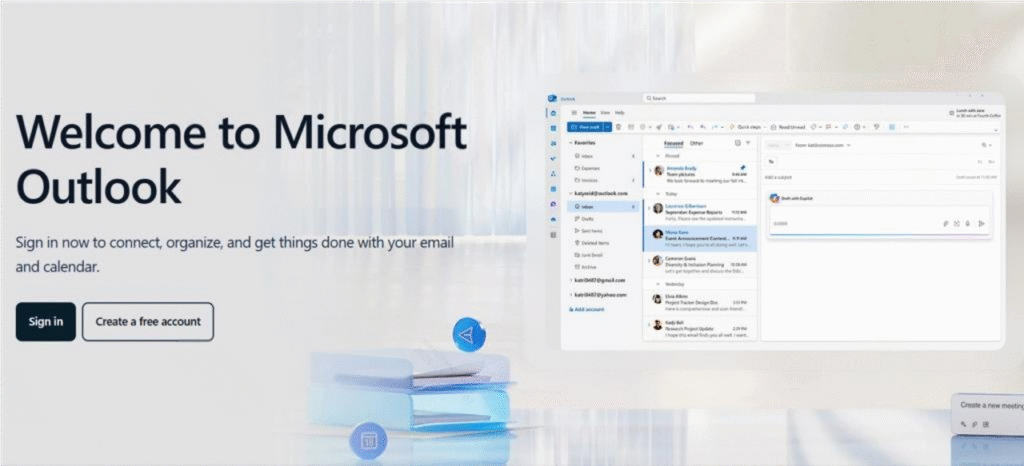
From the left sidebar, open the People tab (sometimes found under the App Launcher “grid” icon).
This is where all web-based contacts are created and managed.
Step 2 — Click “New Contact”
Select New Contact at the top.
A clean form will appear for entering your personal or professional details.
Step 3 — Fill in Your Key Information
Enter your essential contact fields:
- Full name
- Email address
- Mobile and work numbers
- Company
- Job title
These fields map directly to standard vCard properties and ensure good compatibility across platforms.
Step 4 — Add Additional Business Details (Optional)
For a more complete Outlook Online vCard, you can also include:
- Physical address
- Website link
- Notes
- Department
- Alternate phone numbers
These fields help recipients import a fully structured contact into their email client or CRM.
Step 5 — Upload a Photo (Optional)
Click the photo area to upload a profile picture or company-branded image.
Although optional, a photo improves instant recognition when others import your vCard on mobile or Outlook.
Step 6 — Save the Contact
Click Create or Save to store the contact in Outlook Online.
Step 7 — Export the Contact as a vCard (.vcf)
Outlook Online’s export option is located inside each contact’s detail panel.
To download your vCard:
- Open the saved contact.
- Click the More actions ··· menu (upper-right).
- Select Export vCard.
- Outlook Online will download a .vcf file to your device.
Your Outlook Online vCard is now ready to share via email, Teams, WhatsApp, or CRM import.
How to Export a vCard in Outlook (.vcf)
Outlook allows you to export any contact as a vCard (.vcf) file.
Below are the exact steps for Outlook Desktop and Outlook Online, since the export locations are different in each version.
Export a vCard in Outlook Desktop
Outlook Desktop saves vCards directly from an individual contact window.
Step 1 — Open the Contact You Want to Export
Go to People → Contacts, then double-click the contact to open the full details panel.
(Export won’t appear if you don’t open the contact window.)
Step 2 — Go to File → Save As
Inside the contact window:
- Click File (top-left)
- Select Save As
Step 3 — Choose vCard Format
In the Save dialog:
- Set Save as type → vCard Files (*.vcf)
- Pick a location on your computer
- Click Save
Your Outlook Desktop vCard is now generated as a .vcf file and ready for sharing.
Export a vCard in Outlook Online
Outlook Online has a dedicated “Export vCard” button inside each contact’s options menu.
Step 1 — Open Your Contact in Outlook Online
Go to Outlook.com → People, then click a contact to open its details panel.
Step 2 — Open the More Actions Menu
In the upper-right of the contact panel, click ··· (More actions).
Step 3 — Select “Export vCard”
Click Export vCard.
Outlook Online will automatically download a .vcf file to your device.
Which Version Should You Use? (Quick Comparison)
| Feature | Outlook Desktop | Outlook Online |
|---|---|---|
| Export vCard location | File → Save As | “···” → Export vCard |
| Supports photo export | Yes | Yes |
| Best for | Office users, local file storage | Cloud users, browser-only workflow |
| File download | Manual save | Auto-download |
How to Send a vCard (Email, Outlook, Teams)
Once you’ve created or exported your vCard (.vcf), you can easily share it through Outlook email, Outlook Desktop, Outlook Online, or Microsoft Teams. Below are the most common ways to send your Outlook vCard.
Send a vCard in Outlook Desktop (Attach to Email)
Outlook Desktop lets you attach a vCard to any message as a standard file attachment.
Step 1 — Open a New Email
Go to Home → New Email (you can find the New Email button on the Home tab in the Outlook ribbon).
Step 2 — Click Attach Item → Business Card
On the message ribbon:
- Select Attach Item
- Choose Business Card
- Pick the contact you want to send
Outlook will attach the contact as a .vcf file.
Tip: If you saved your vCard manually (File → Save As → .vcf), you can also attach it as a normal file using Insert → Attach File.Send a vCard in Outlook Online
Outlook Online does not have a “Business Card” button, but you can still attach a downloaded .vcf file.
Step 1 — Create a New Message
Click New Mail.
Step 2 — Attach Your vCard File
Click Attach → Browse this computer and select your .vcf file.
The file will be added as an email attachment.
Send a vCard via Microsoft Teams
Teams supports sending vCards as files inside chats or channels.
Step 1 — Open a Chat or Channel
Go to the conversation where you want to share the contact.
Step 2 — Click “Attach” (Paperclip Icon)
Select the Attach icon.
Step 3 — Upload Your vCard
Choose your saved .vcf file.
Teams will send it as a downloadable file, and teammates can import it into Outlook, iOS Contacts, or CRM tools.
Send a vCard Through Any Messaging Platform
Because a vCard is a universal .vcf file, you can also send it via:
- Slack
- iMessage
- Google Chat
- Email Clients
- SharePoint / OneDrive link
Simply send the .vcf file like any other document — the recipient’s device will handle the import.
Why Isn’t My Outlook vCard Working? (Common Issues & Fixes)
When working with vCards in Outlook, users often run into compatibility issues across different devices and apps. Below are the most common problems and the exact fixes.
| Issue / Problem | Symptoms | Why It Happens | How to Fix |
|---|---|---|---|
| vCard Image Not Showing (Missing Photo) | – Photo not visible in recipient’s contact- Mobile devices show contact without image | – Outlook may compress or strip embedded images- Photo size too large- Outlook / Exchange syncing removes image | – Use a square 300×300 px image- Upload photo inside Outlook directly- Re-export via File → Save As → vCard (.vcf)– Avoid images >1 MB |
| vCard Not Opening or Shows an Error | – “Cannot open this file”- iPhone/macOS won’t import- CRM rejects the file | – Exported using older ANSI encoding– File contains extended characters(中文、é、emoji)- Multi-line Notes break formatting | – Export using Outlook Online (UTF-8)– Remove emojis & unsupported characters- Shorten long Notes fields- Ensure the file includes: BEGIN:VCARD / VERSION:3.0 or 4.0 / END:VCARD |
| vCard Opens but Fields Are Missing (Phone, Company, Address) | – Missing phone number- Company not mapped- Address appears blank | – Apps (iOS, Gmail, CRM) map fields differently | – Use standard fields only (mobile, business phone, email, company)- Avoid custom fields (Assistant Phone, Other URL)- Ensure address fields include: Street / City / State / ZIP / Country Note: Once a vCard or vCard QR code is created, you cannot edit its content. Always verify and edit your contact information before exporting or sharing. |
| vCard Not Exporting in Outlook Desktop | – No .vcf option in Save As- Export button missing- Cannot open correct contact | – Contact not opened fully- Reading Pane blocks full contact view- Older Outlook build hides Save As- Contact synced from Google/iCloud | – Double-click to fully open contact window- Disable Reading Pane: View → Reading Pane → Off- Update Outlook- Copy synced contacts to This Computer Only |
FAQs
1. How to Fix vCard Not Opening in Outlook?
If your vCard (.vcf) won’t open, the problem usually comes from file compatibility or formatting issues.
Common causes:
- Older email clients or devices don’t support certain vCard versions.
- Corrupted or incomplete VCF files.
- Large images or unsupported characters in notes.
Quick fixes:
- Open the vCard in Outlook or a mobile contacts app to verify contents.
- Re-export the vCard using Outlook Online (UTF-8 format) for better cross-device support.
- Reduce image size if your vCard includes a photo or logo (<1 MB recommended).
- Remove emojis or special characters in notes.
- Test on multiple devices to confirm compatibility.
2. How to Create a vCard Online or on Mobile Without Outlook
You don’t need Outlook to create a professional vCard. Alternatives include:
- Online vCard Makers: Free or paid tools let you add contact details, upload a profile photo/logo, and export a ready-to-share .vcf file.
- Mobile Contacts Apps: iPhone Contacts and Android Contacts apps allow you to create and export vCards directly.
- Other Email Clients: Gmail and Apple Mail can generate vCards from your existing contacts.
Pro Tip: Using online vCard generators is ideal for team-wide distribution or creating multiple cards quickly.
3. Step-by-Step Guide: Convert vCards (.vcf) to CSV or Excel
Converting vCards to CSV or Excel helps with bulk contact management, CRM import, and team sharing.
Methods:
- Outlook: Import VCF → Select contacts → Export as CSV.
- Google Contacts: Import VCF → Choose contacts → Export → Select CSV.
- Online Conversion Tools: Free or paid web tools convert vCards to Excel while preserving full names, emails, phone numbers, and company info.
Tips for Accuracy:
- Double-check column headers (Name, Email, Phone, Company).
- Merge multiple vCards carefully to avoid duplicates.
4. Why Is My vCard Image Not Showing on Mobile or Outlook?
Missing photos in vCards are common, especially on mobile devices.
Causes:
- Image too large or in an unsupported format.
- Outlook or Exchange compresses or strips embedded images.
- Sync conflicts across devices or email accounts.
Solutions:
- Use a square, 300×300 px image in PNG or JPG.
- Upload the photo directly inside Outlook (not through syncing apps).
- Re-export the vCard using File → Save As → vCard (.vcf).
- Avoid images larger than 1 MB.
5. How to Share a vCard via Email, Teams, or Messaging Apps
vCards are universal .vcf files, so you can share them across multiple platforms.
Outlook Desktop: Attach via Attach Item → Business Card or as a regular .vcf file.
Outlook Online: Attach downloaded .vcf via Attach → Browse this computer.
Microsoft Teams: Send as a file in chat or channel.
Tip: The recipient’s device will automatically import all fields from the vCard.
Note: Some platforms may handle vCard attachments differently. Always double-check that your contact information is imported correctly by the recipient.


