


In today’s world, your “business card” is no longer just paper. It might be a link in your email signature, a digital business card, or a virtual business card shared on the spot.
As the global professional network’s ID, LinkedIn concentrates your resume, endorsements, and connections. To turn that trust into action, make a business card with linkedin front and center: on printed business cards, place a clean URL or linkedin qr code beside your name, job title, company logo, and essential contact details; online, mirror the same destination across social media links and a scannable qr code. This guide shows how to efficiently and professionally integrate your LinkedIn link across formats—so every card, physical or digital, delivers instant access and a seamless next step.
Why You Need to Add Linkedin to your Business Card
Adding LinkedIn to your business card matters because it turns a static intro into a powerful tool for trust and follow-up.
- Instant credibility & context
A business card with LinkedIn lets new contacts see your LinkedIn profile—roles, job title, profile photo, recommendations—far beyond basic contact details. Paired with your company logo on printed business cards, it signals authenticity and makes a lasting impression. - Faster connections, fewer lost leads
Print a clean URL or a LinkedIn QR code on printed cards/paper cards so people can scan and quickly share. Prefer a dynamic QR code for updates without reprinting. For tap-to-open, use NFC business cards (a physical nfc card / nfc card). All options give quick access in a phone browser or the LinkedIn app. - More than a phone number
Beyond phone numbers and contact information, include curated social media links, portfolio website, and “share contact information” buttons. You can create a short link to save to contacts or share directly via text message.
How To Improve Your Linkedin Profile?
Personal branding on LinkedIn turns employee voices into reach and revenue. Your profile is the foundation—and LinkedIn keeps adding features that make it a stronger personal marketing platform.
Easy Wins
- Profile photo & banner:Use a recent, high-resolution headshot and a banner that reinforces your value proposition and company logo. Visitors coming from a business card with short Linkedin URL or QR code decide in seconds—professional visuals keep them reading.
- Headline beyond job title:Go past your job title: state who you help, how, and the result (e.g., “SaaS AE | Help SMBs turn trials into revenue”). This makes context clear for new contacts arriving from printed business cards or a digital business card.
- Custom URL + sharing formats:Claim linkedin.com/in/yourname, print a short version or QR code on printed cards, and program the same link into NFC business cards/physical NFC card. Mirror it in your email signature so every scan or click leads to the same quick access destination.
- Contact & Featured:Keep contact details lean and current (primary email and one link that you monitor). Pin 2–3 clickable links in Featured—case study, booking page, or deck—so traffic from cards lands on a clear next step.
Pro Tips
- About = your story in outcomes:Write 3–5 impact bullets with numbers and customer value, and link to web examples. This turns curiosity from virtual meetings or networking events into credibility fast.
- Experience entries:Lead each role with results (“Shipped X → +25% conversion”) and attach media people can download/share directly. It works smoothly on phone in both browser and LinkedIn app.
- Skills & recommendations:Curate 10–15 core skills and prune the rest; request 2–3 targeted recommendations from clients or managers. Together, they validate the story your LinkedIn profile tells beyond the contact information on a physical card.
- Activity cadence:Post helpful insights weekly and comment thoughtfully so your account stays visible—even on the free plan. This keeps momentum with new contacts you met via business cards.
- One destination everywhere:Point your LinkedIn QR code, NFC card, and digital card to the same short link; if needed, swap targets with a dynamic QR code (no reprint—cost effective and eco friendly). Offer an Apple Wallet/Google Wallet pass so your card sits on the user’s home screen for tap-to-open follow-ups.
For more details, please click here.

How to Shre Your Business Card Instantly?
Google Wallet
A mobile pass saved in Google Wallet that surfaces your business card on Android for one-tap sharing.
- Keep text short.
- Prioritize one primary CTA — e.g., “Connect on LinkedIn” or “Save contact.”
- Ensure fast mobile loading for the destination page.
- Update content centrally so the pass always stays current.
Apple Wallet
An Apple Wallet pass (iOS) that pins your business card to the user’s lock/home screen for quick access at events.
- Make the top line readable at a glance (name / title).
- Use a high-contrast logo for clear visibility.
- Align Wallet pass data with your printed card details.
- Refresh the pass payload whenever roles or links change, so everyone sees the latest info.
NFC Business Cards
Physical cards with an embedded NFC chip. A tap opens your chosen URL—typically your digital business card or LinkedIn profile.
- Unify the destination across NFC, Apple Wallet, Google Wallet, and printed cards to one URL you control.
- Add a micro-CTA on the card: “Tap or scan to connect.”
- Test on iOS and Android (different NFC antenna positions), and verify the page renders instantly on mobile.
LinkedIn URL vs. LinkedIn QR Code
| Feature | LinkedIn URL | LinkedIn QR Code |
|---|---|---|
| Best For | Online and digital use — websites, email signatures, digital business cards | In-person networking — events, conferences, printed materials |
| Format | Text link (e.g., linkedin.com/in/yourname) | Scannable image linking directly to your profile |
| Accessibility | Clickable on any device; searchable on Google | Instantly accessible via smartphone camera or scanner |
| SEO Benefits | Helps boost personal branding and search visibility when customized | No direct SEO impact, but increases engagement offline |
| Ease of Sharing | Easy to copy, paste, and embed across platforms | Easy to scan and share face-to-face without typing |
How to Design Your LinkedIn Link on a Business Card?

Simply having your LinkedIn information on your business card isn’t enough. How and where you place it is a critical piece of the puzzle that directly impacts usability and professionalism. Thoughtful design guides the eye, creates a positive experience, and, most importantly, encourages the desired action: a connection.
A digital business card can be created using online tools, allowing you to customize templates and finalize the design before sharing or downloading.
Get the info ready for LinkedIn
Every millimeter of your business card is valuable real estate. Strategically positioning your LinkedIn information ensures it is seen and used without cluttering the design.
Information First
- Make it core, not extra: Treat your LinkedIn profile as an extension of your professional identity—not an afterthought.
- Group with identity info: Place LinkedIn alongside your name and job title so they read as one cohesive visual unit.
- List as official contact: In the contact details block, put LinkedIn next to your phone and email as a primary communication channel.
- Keep it consistent: Use the same handle/URL format across your card, resume, website, and email signature.
Stay Professional and Clean
Use the Official Icon:
The devil is in the details. Small visual missteps can undermine the professional feel of your entire card.
- Source Matters: Always download the standard “in” icon from the official LinkedIn Brand Resource Center or a reputable vector icon library. Never use a low-quality, pixelated image found through a casual web search.
- Styling: The icon should typically remain in its signature LinkedIn blue or be converted to a single, contrasting color (e.g., black or white) to match your brand palette. Ensure it is legible against your chosen background.
Whitespace and Contrast (for QR Codes):
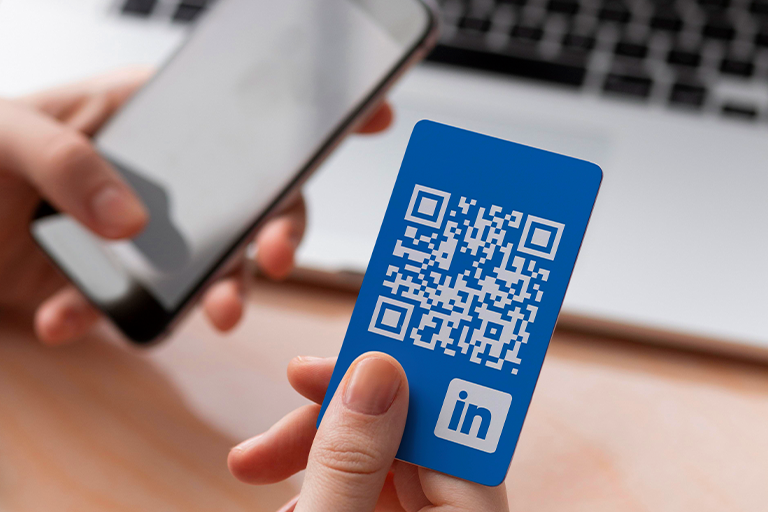
- Give it Room to Breathe: Provide ample “whitespace” or clear space around your QR code. This prevents other design elements from encroaching on it, makes the design feel cleaner, and allows smartphone scanners to identify and read the code instantly.
- Ensure High Contrast: The QR code must stand out strongly from its background (e.g., a dark code on a light background, or vice-versa). Avoid using complex patterns or images behind the code, as this will interfere with scannability. Always test the final printed version with multiple phones to ensure a quick, one-time scan.
Conclusion
Putting LinkedIn on your business card is about removing friction between a handshake and a lasting connect. Whether you print a short URL or add a scannable code, aim for one destination you control—then mirror it across your digital business card, website, email signature, and profiles online. Keep the experience consistent: same handle, same logo, same story.
The result is a reliable path from card to network: clear entry points, fast loading, and credible content. Spending a small amount of money on premium digital business card features is often a worthwhile investment for enhanced functionality and benefits. If you keep the landing page current and your profile strong, every card—physical or digital—becomes an always-on gateway to your LinkedIn presence.
Frequently Asked Questions
Should you put LinkedIn on a business card?
Yes. It turns a static handoff into a live profile. Add a clean vanity URL (linkedin.com/in/yourname) and/or a scannable LinkedIn QR code. Keep the destination consistent with your digital business card, website, and email signature, and make sure your profile is publicly viewable so new contacts can connect without friction.
How to use LinkedIn as a business card?
- Create a readable URL and print it beside your name, job title, and logo.
- Add a QR code that opens your profile in the LinkedIn app or mobile browser.
- Mirror the same link across your digital business card (or simple web landing page), email signature, and slides.
- Test on phone/desktop (logged out) to ensure quick access and a solid first impression.
Does LinkedIn offer a digital business card?
LinkedIn doesn’t provide a full-featured “digital business card” product, but it does offer an in-app LinkedIn QR that links to your profile. For a true digital card (with multiple buttons, files, and analytics), use a dedicated online card tool or a lightweight page on your website and point all entry points to it.
Can I use the LinkedIn icon on business cards?
Yes—use the official “in” logo per brand guidelines. Keep proper color, clear space, and proportions; don’t stretch, recolor, or add effects. Pair the icon with your handle or URL (e.g., in/yourname) or a QR code.


